How to create an access on Google Cloud Console?
For configuration assistance, you can give a person access to the relevant Google Cloud project. This access is separate from the permissions of the service account used by the Indexing API.
First check whether your pages are eligible
The Google Indexing API is restricted to pages containing a job posting with JobPosting structured data, or a livestream with a BroadcastEvent embedded in a VideoObject. A standard product page does not become eligible because the module can submit its URL. This API is not a general indexing service for shop pages.
An accepted notification does not guarantee that a page will be crawled or indexed. Notification status indicates receipt, not whether the page is in Google's index. See the official Indexing API rules.
For standard product pages, use a sitemap submitted through Google Search Console. IndexNow can notify compatible search engines of changes; it does not forward these notifications to Google. See the FAQs about IndexNow and Google and reporting your site's pages. These methods do not guarantee indexing either.
Service account: distinguish Google Cloud from Search Console
For an eligible use, Google's prerequisites require a project with the API enabled, a service account and site ownership in Search Console.
- In Google Cloud: the account performing the setup needs permissions for the operations involved, such as creating a service account or enabling an API. These are the permissions of the person configuring the project.
- For the service account: Google states that the step granting project permissions is optional and is not required in the Indexing API prerequisites. For this use alone, leave this step without a project IAM role; do not grant the service account the IAM Owner role (
roles/owner). - In Search Console: after verifying site ownership, add the service account's email address as a delegated owner of the relevant property. Use the exact service account address, identified by the
client_emailfield in its JSON file. This status applies to the site, not the Google Cloud project.
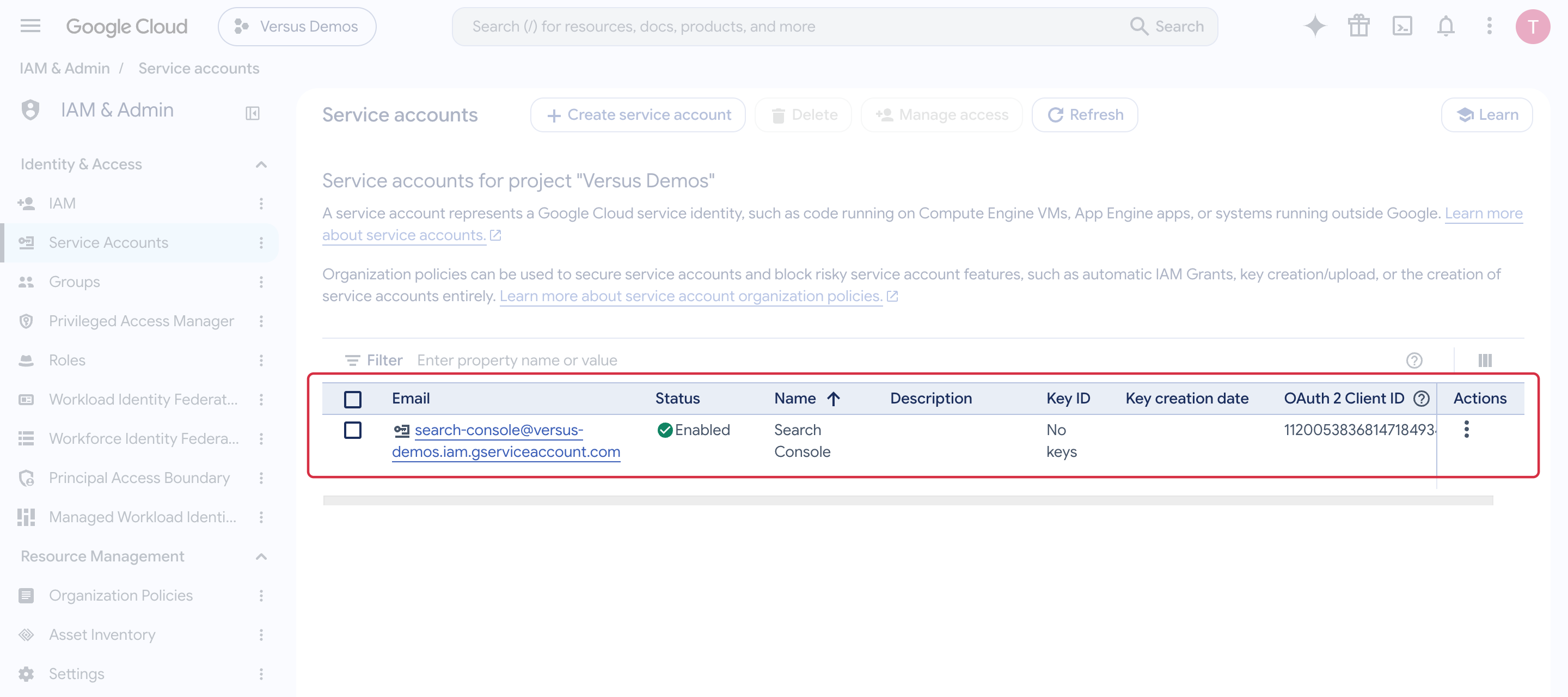
To create the service account, select the correct project in Google Cloud, then open IAM & Admin → Service Accounts → Create service account. Follow the official creation procedure, where project roles are optional. In Search Console, open the correct property, then Settings → Users and permissions to manage the delegated owner; see managing owners and permissions.
Give a person access for configuration assistance
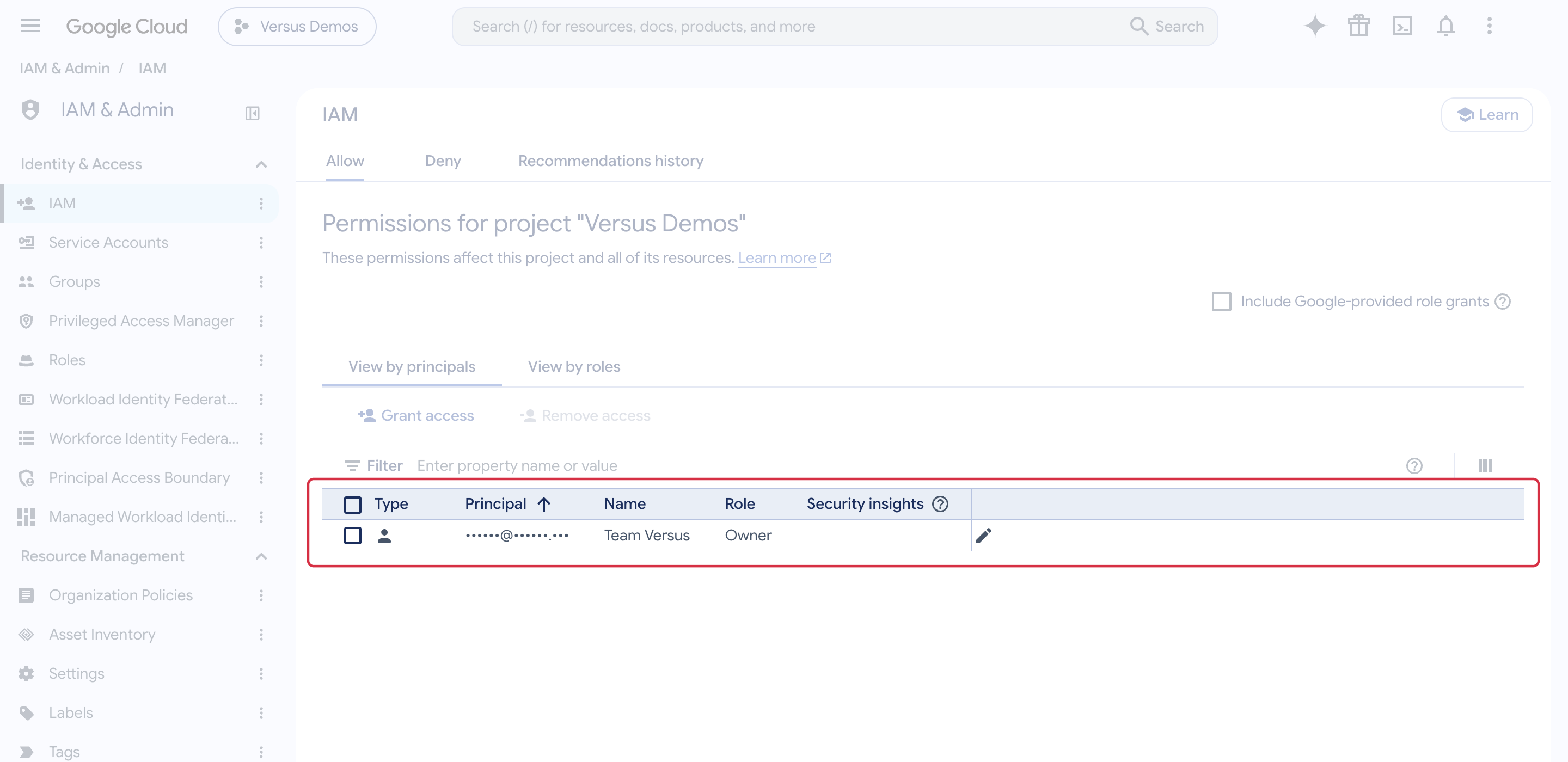
The required roles depend on the operations the person needs to perform. Have the operations, the account address to invite and the corresponding roles specified before saving access. The API prerequisites do not define a universal IAM role for a support intervention.
- Sign in to Google Cloud Console with an account allowed to manage access, then select the relevant project.
- Open IAM & Admin → IAM, then Grant access.
- In New principals, enter the address confirmed for this intervention. Do not confuse it with the service account address added in Search Console.
- Under Assign roles, select only the roles needed for the agreed operations. The IAM Owner role grants extensive project permissions and should not be selected systematically.
- Click Save, then check the project, address and roles in the IAM list. When the intervention ends, remove access that is no longer needed.
Reference: grant, change and revoke IAM access.